01
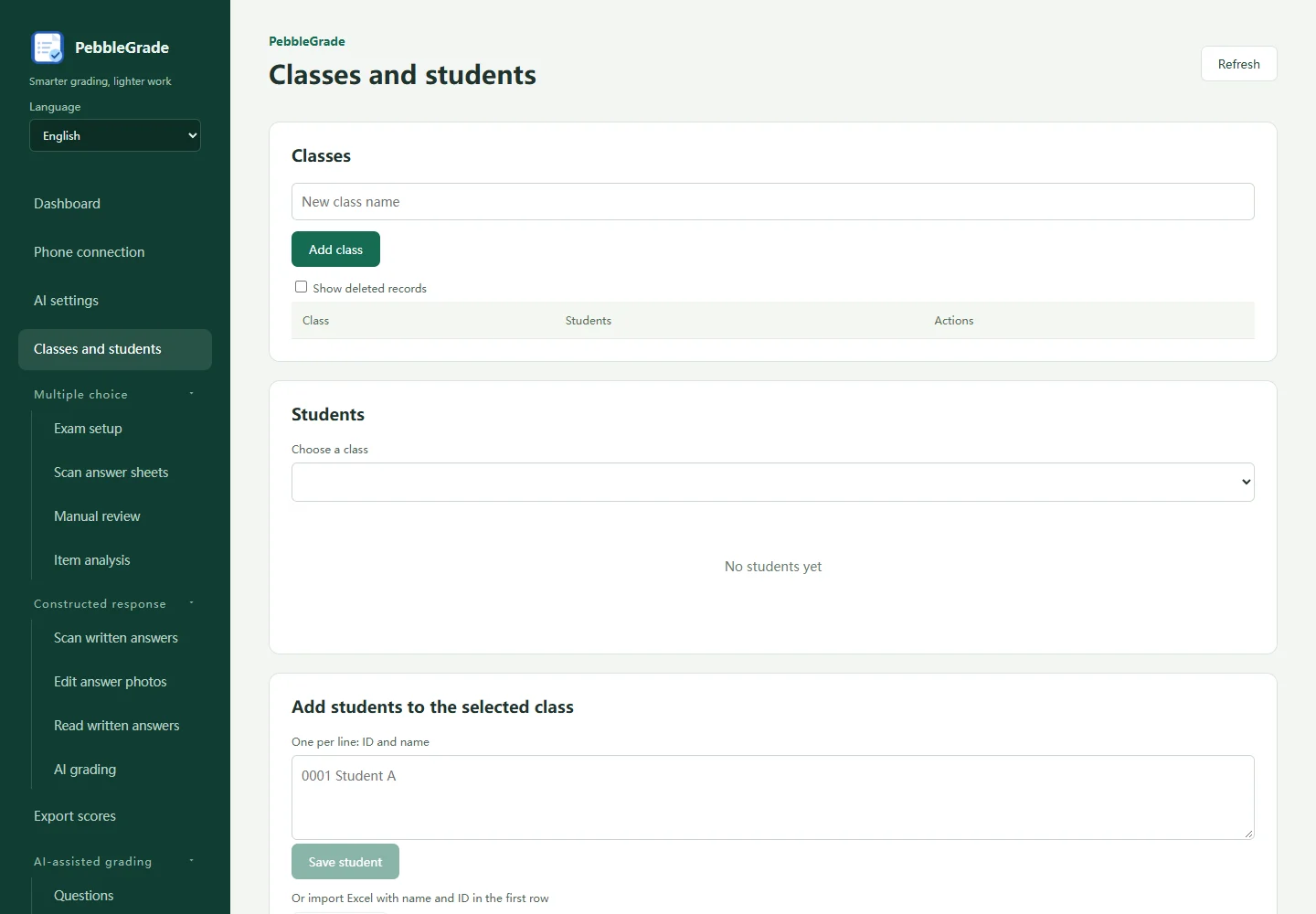
Start with classes and a student roster
- Open Classes & students, create a class and add or import students. The .xlsx roster needs student-number and name columns. Check identifiers, class membership and totals before scanning.
- Choose one workflow: multiple-choice tests, paper written responses, or AI-assisted grading for an existing on-screen grading task. Practise with a few sample sheets first.
02
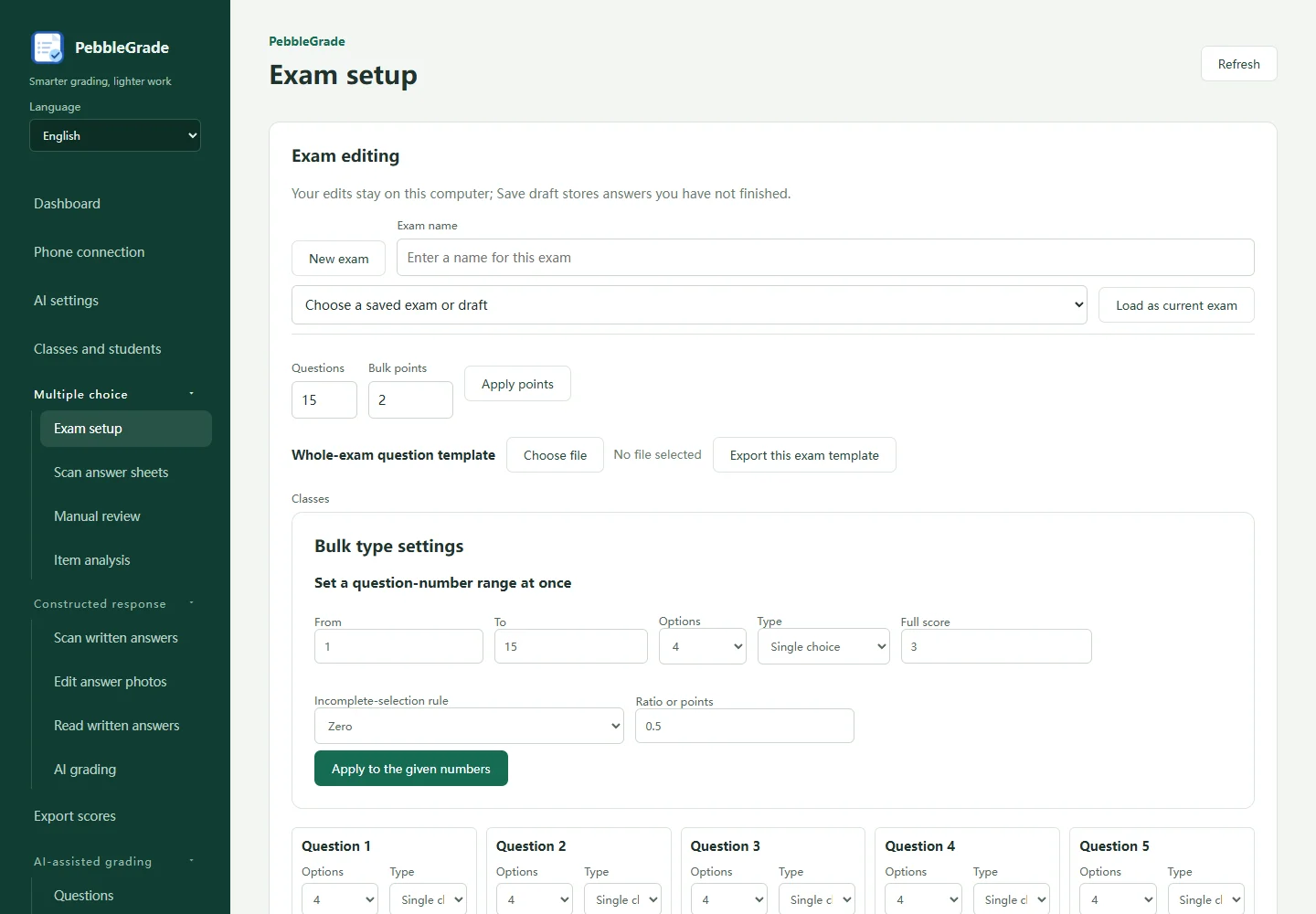
Multiple choice: configure, print and scan
- In Exam settings, select classes, set question counts, options, single or multiple choice, correct answers and points. For multiple-choice questions, check partial-credit rules and try sample answers.
- Preview the answer card, then export an image or printable PDF. Use the layout generated for your configuration; keep its scale and full black border when printing.
- Save the exam. Create a new exam when a different answer key is required after scores exist.
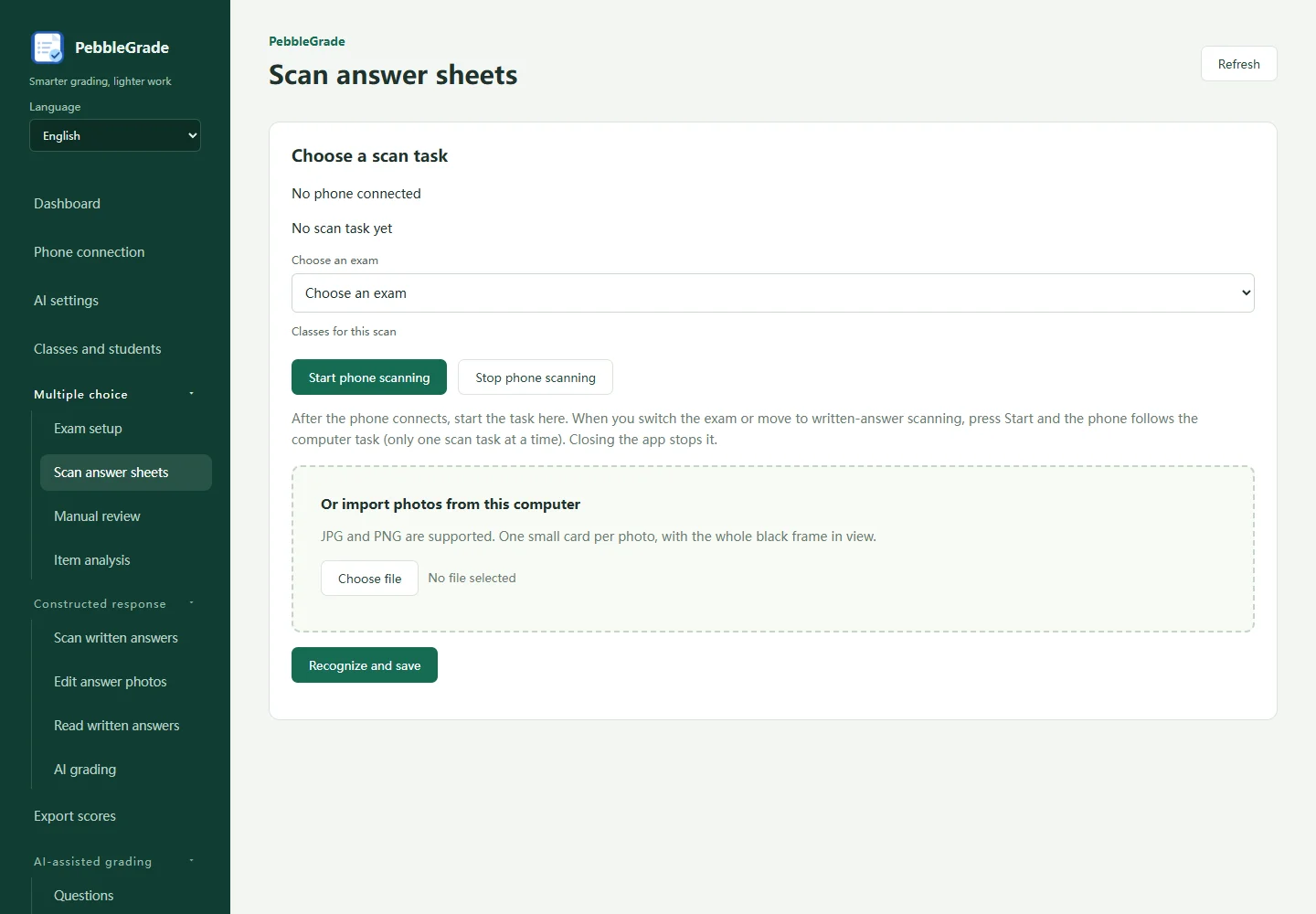
- In Scan answer sheets, select the exam and classes. Start phone scanning or import JPG/PNG images from the computer. Photograph one small card per image, with the complete border and even lighting.
03
Review uncertain answers before analysing scores
- Open Manual review and inspect faint marks, multiple marks, uncertain alignment, unclear images and conflicting results against the original image. Confirm student identity and answers.
- Check duplicate scans and missing students. Use Item analysis after reviewing the records.
04
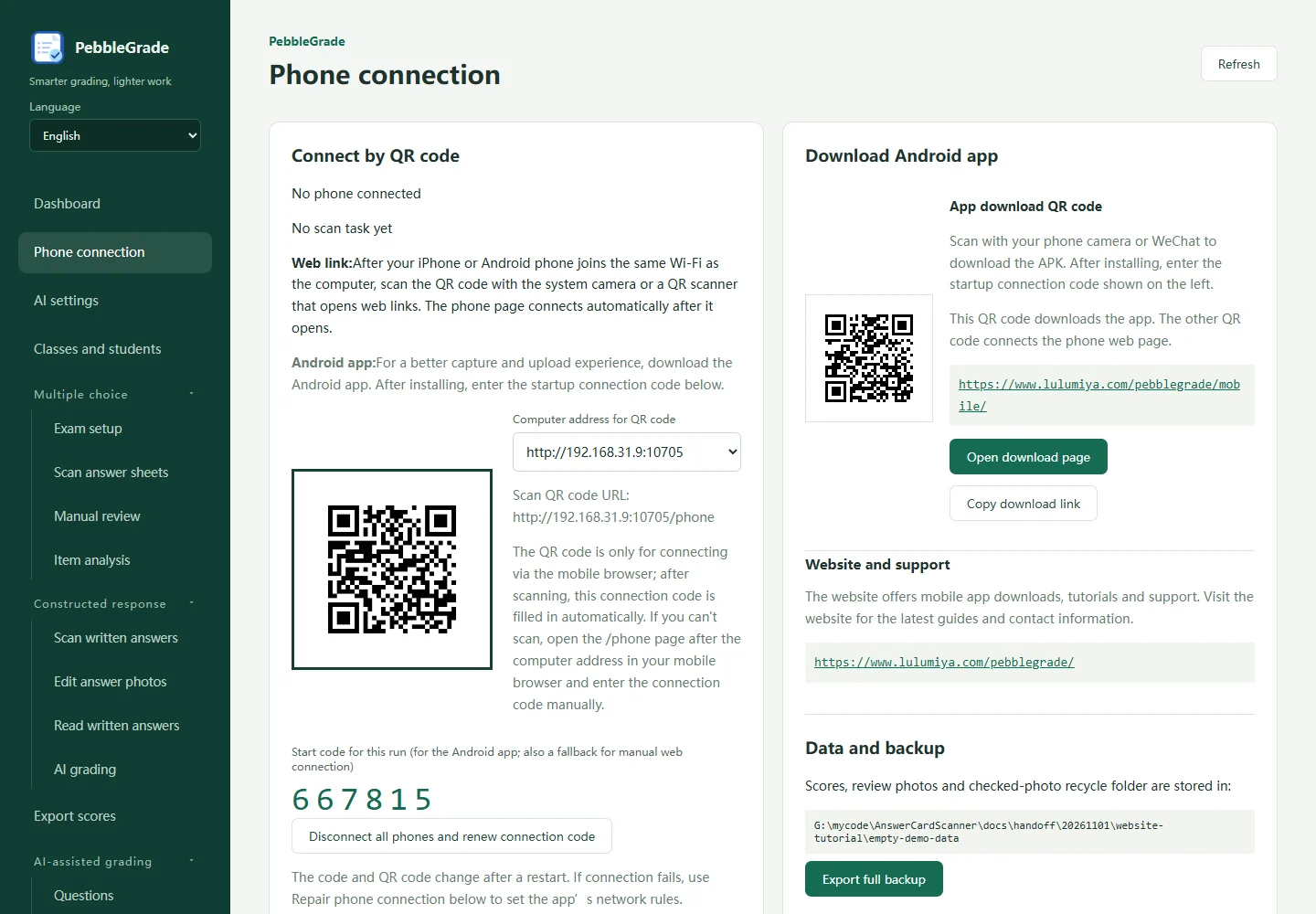
Connect a phone to the running computer
- Keep the desktop app running and use a trusted local network where the devices can communicate.
- Android users can install the companion from Mobile download and enter the current startup code. For browser capture, scan the connection QR shown by the desktop, or open the displayed computer address with /phone and enter its six-digit code. iPhone uses browser capture.
- The website download QR only opens the download page. It does not connect to your computer. Start the correct scanning task on the desktop; only one capture task runs at a time.
- If connection fails, check the running computer, local network access, current code and active capture task. Guest Wi-Fi may isolate devices.
05
Configure and test your AI service
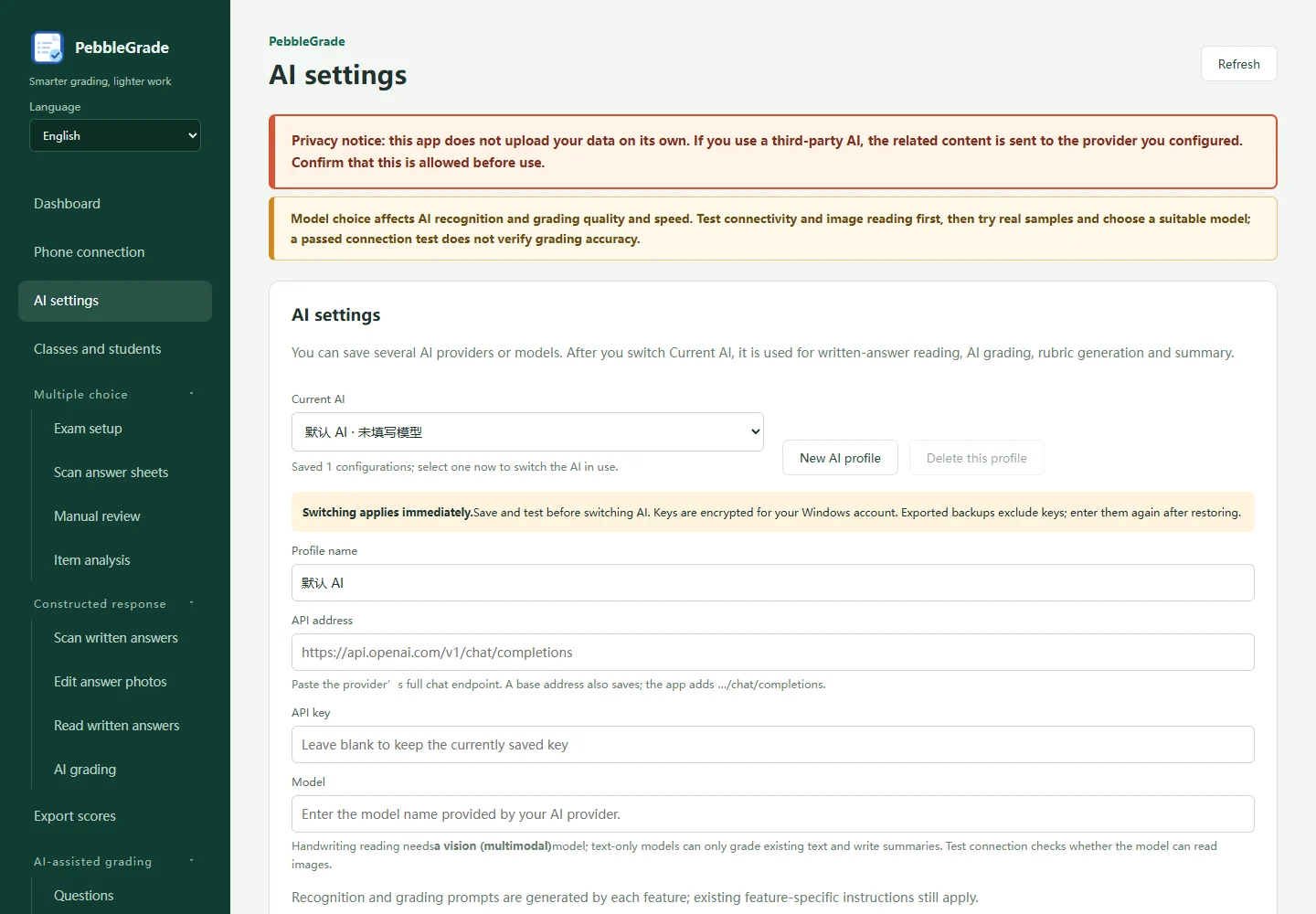
- Open General AI configuration. Enter the configuration name, provider API endpoint, API key and model name. Test the entered settings, then save. Select the active profile when you keep several configurations.
- Handwriting recognition requires a vision-capable model. A text-only model does not replace image recognition; it can be used for supported text-grading and summary operations.
- The app subscription and third-party AI usage are charged separately. Relevant images or text are sent to your selected provider when using AI features. Follow your school’s data requirements.
- Do not include keys in screenshots or support messages. Backups exclude AI keys; re-enter them after restoring on a new computer.
06
Written responses: collect, assign and crop
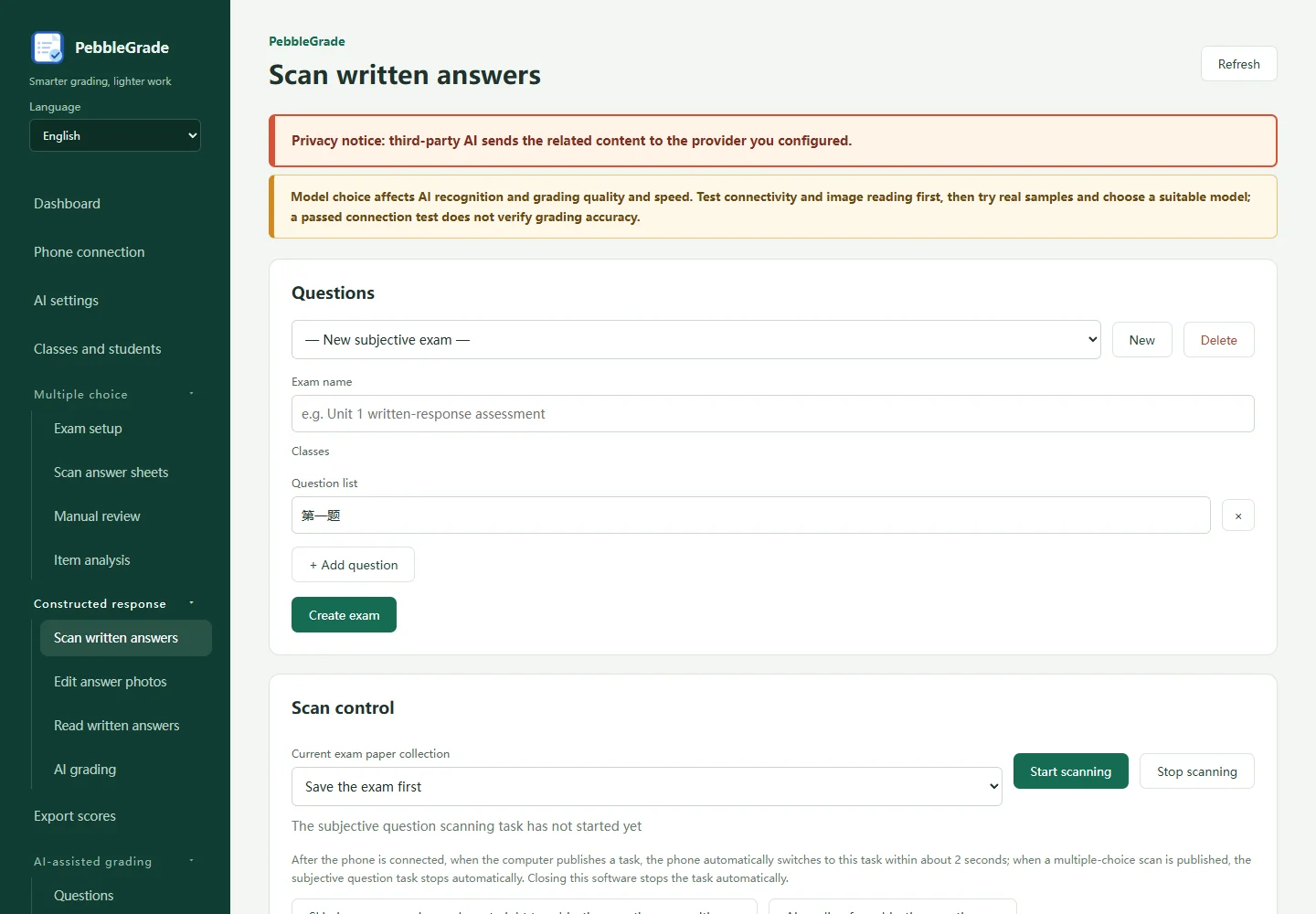
- In Written-response scanning, create and save an exam, its classes and questions. Select the active collection exam, then collect phone photos or import images using the page controls.
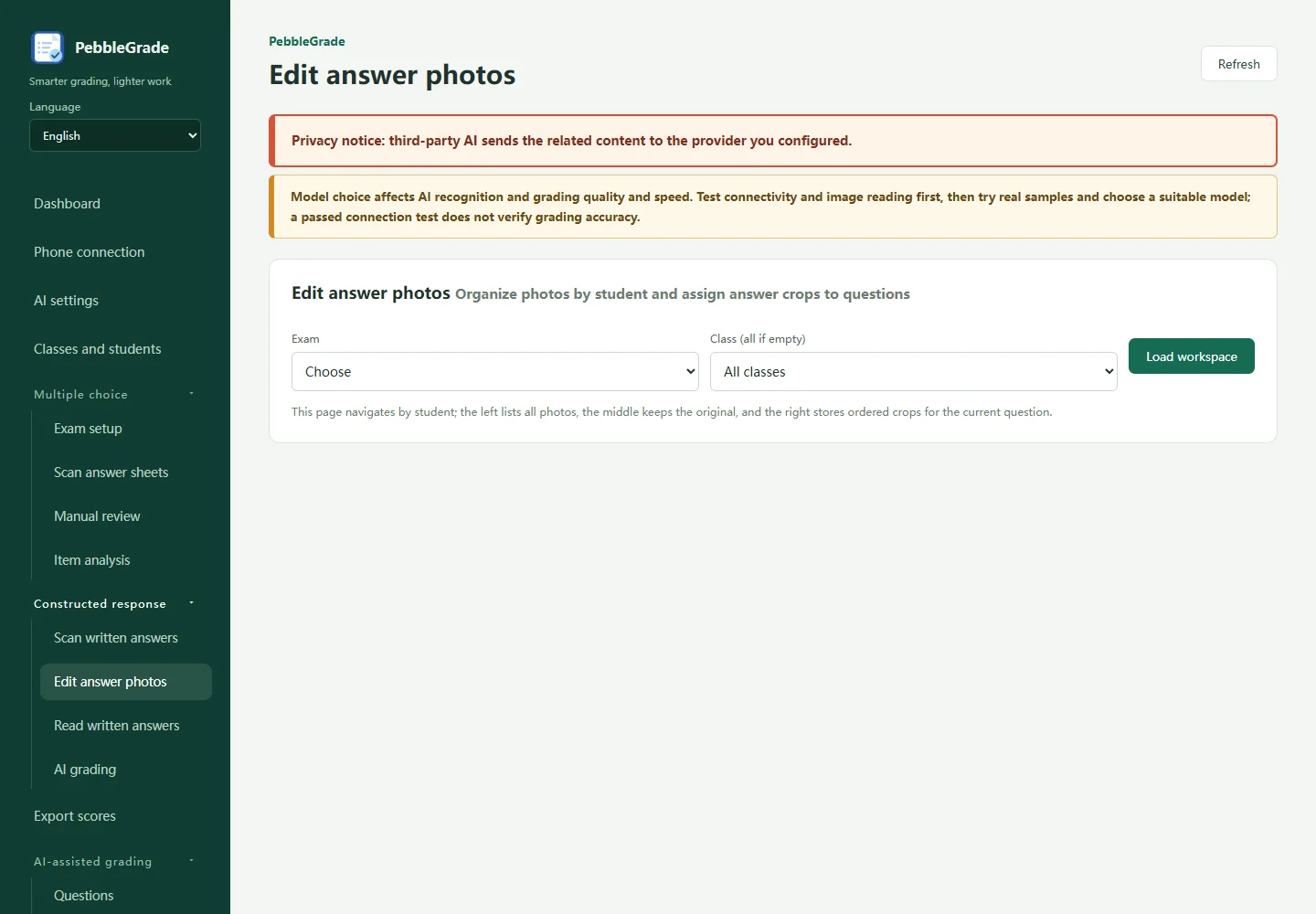
- For a multi-question exam, collect at exam level and assign images to the correct student. In image processing, select the student and crop answer regions into the corresponding question.
- Keep all fragments of the same student’s answer together and in order, including answers that span pages. Open recognition, check the selected fragments, and review the resulting text for missing lines, names and numbers.
07
Written responses: check the rubric before batch grading
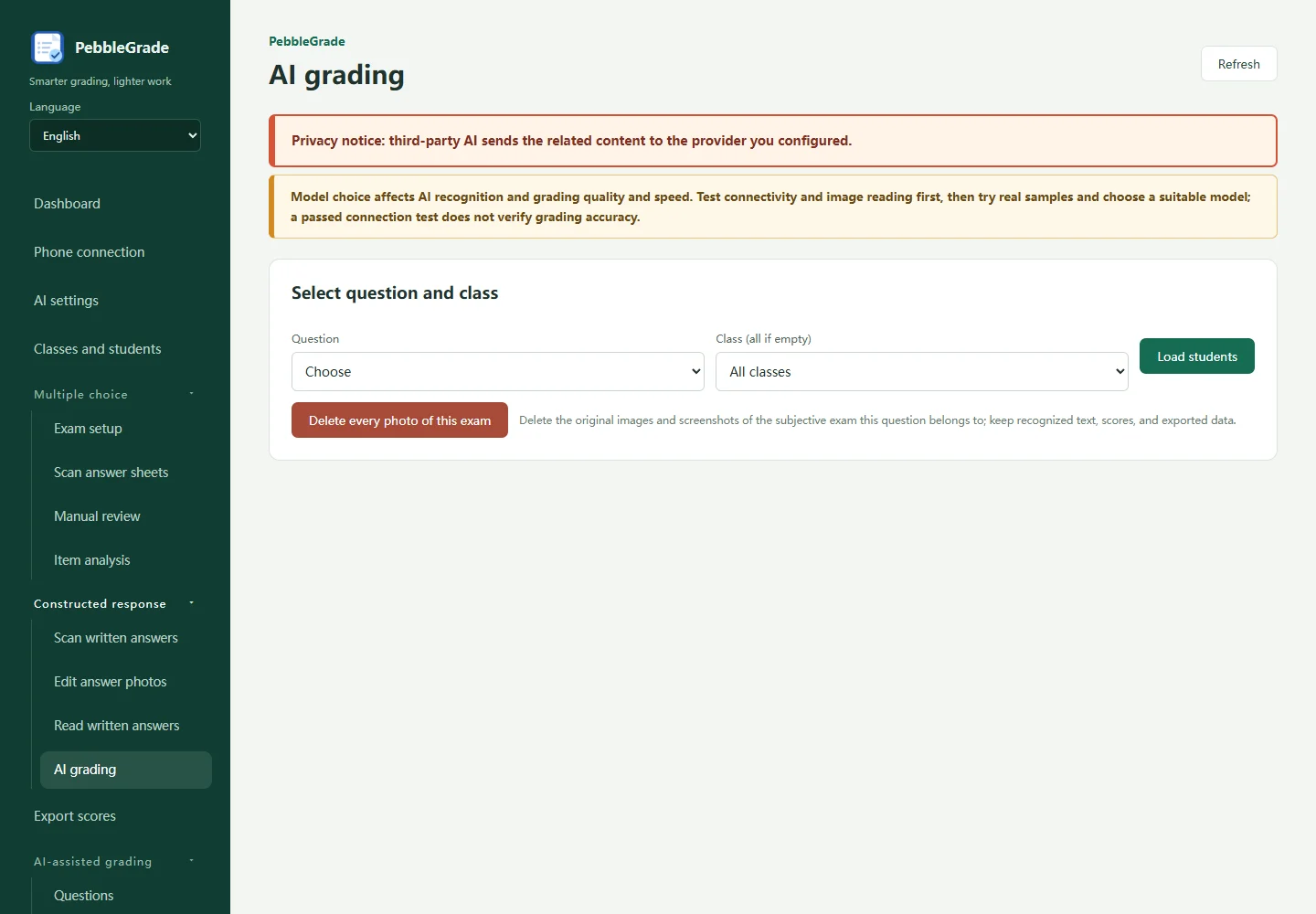
- Select the question in Written-response AI grading. Check its prompt, reference answer, rubric, maximum score and subquestions against the actual student response.
- Try a small sample first. Review recognised text, subquestion scores and scoring reasons. Confirm any rubric changes before continuing with a batch.
- Inspect incomplete and failed records, resolve disputed answers and review final marks. These screenshots locate controls in an empty tutorial environment; they do not show a completed AI grading run.
08
On-screen grading: set questions and capture regions
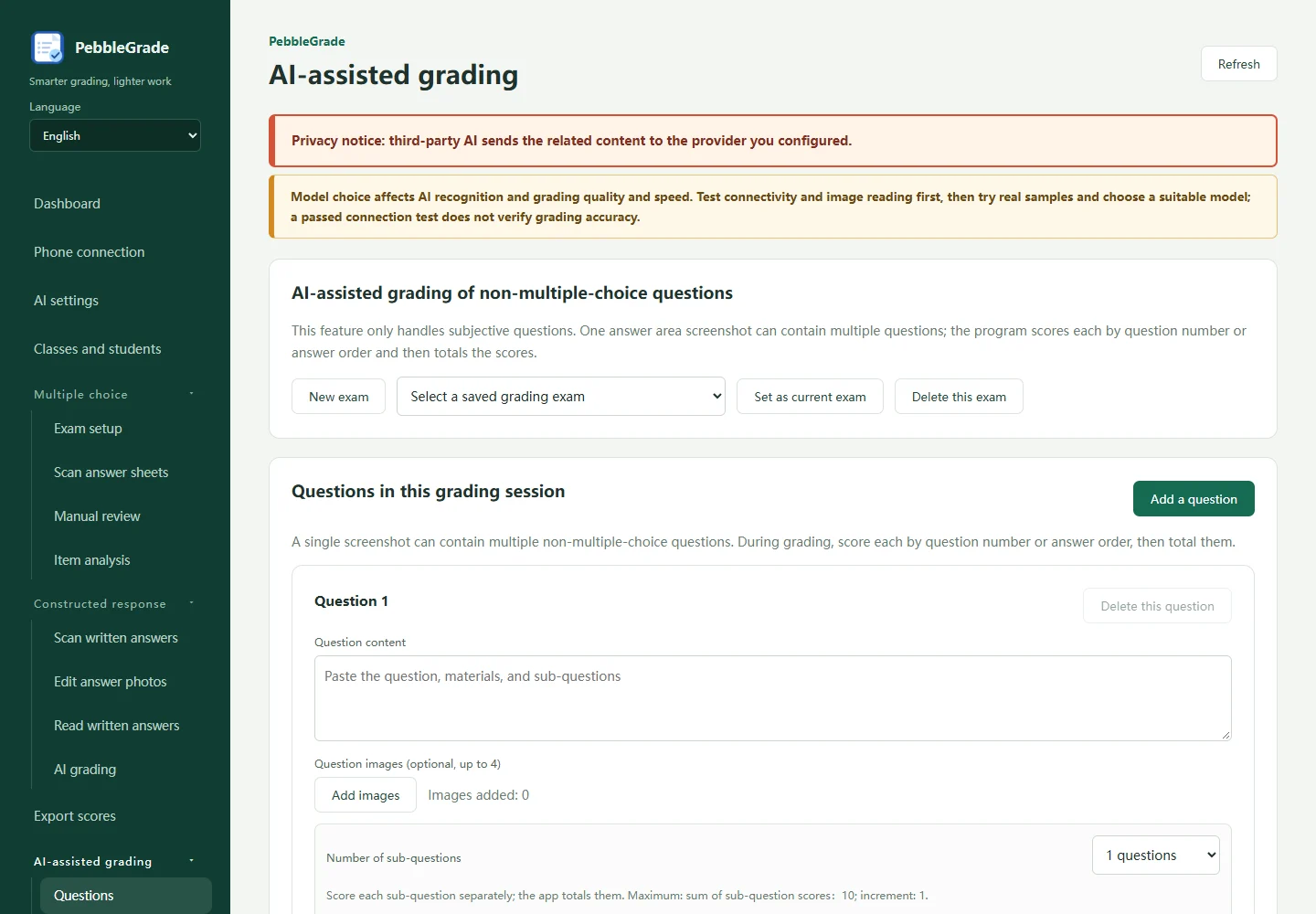
- For an existing online grading task, create or load a task under AI-assisted grading → Question settings. Add the question, reference answer, points and rubric, then save and review the scoring rules.
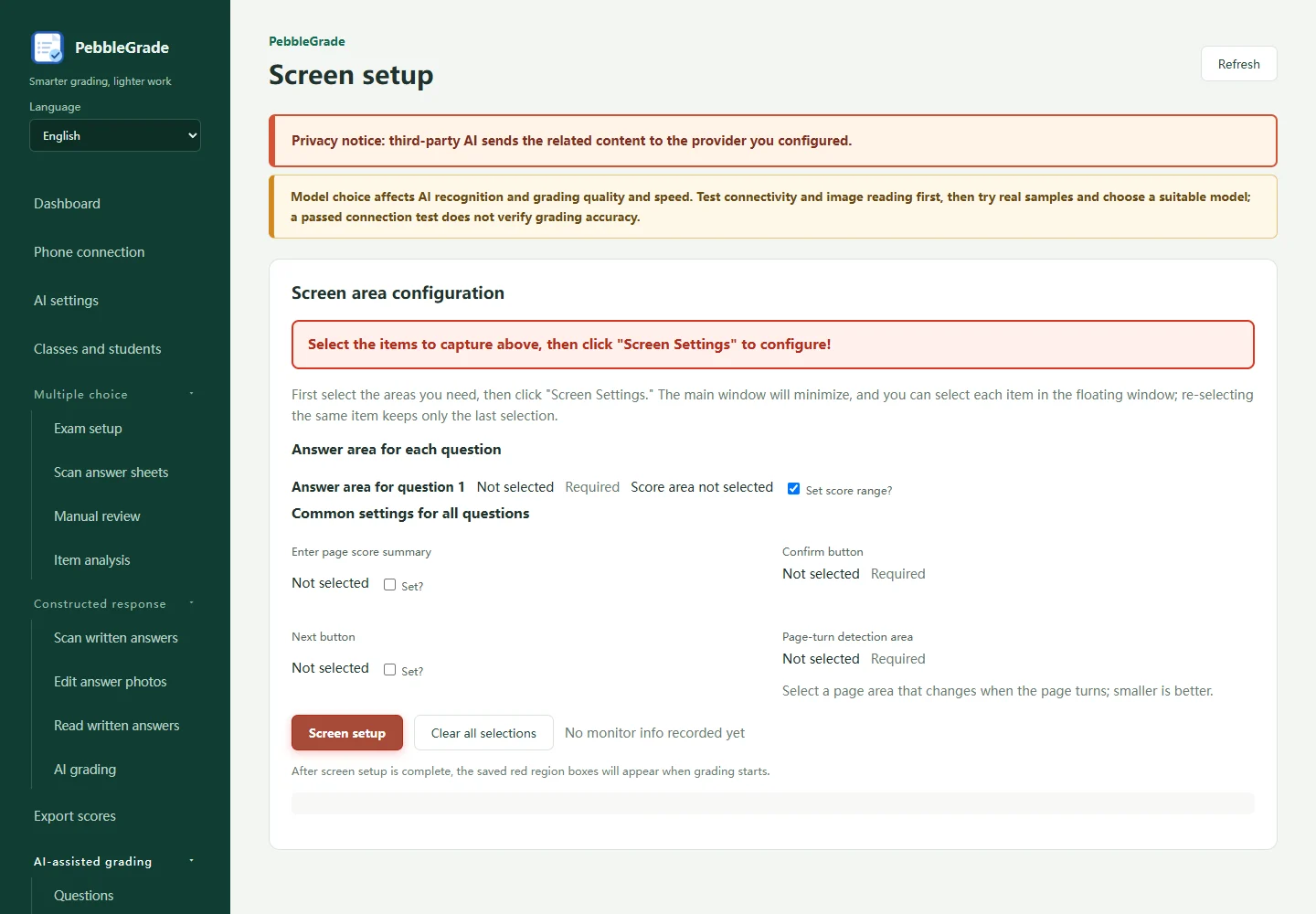
- Open Screen settings with the actual grading platform visible. Follow the controls to select answer regions, score inputs and the confirmation button; configure next-answer and common-score areas as required by the platform.
- Recheck regions if window positions, zoom or monitor layout changes. Validate the input and buttons on a single answer before continuing.
09
Begin with AI assistance and manual confirmation
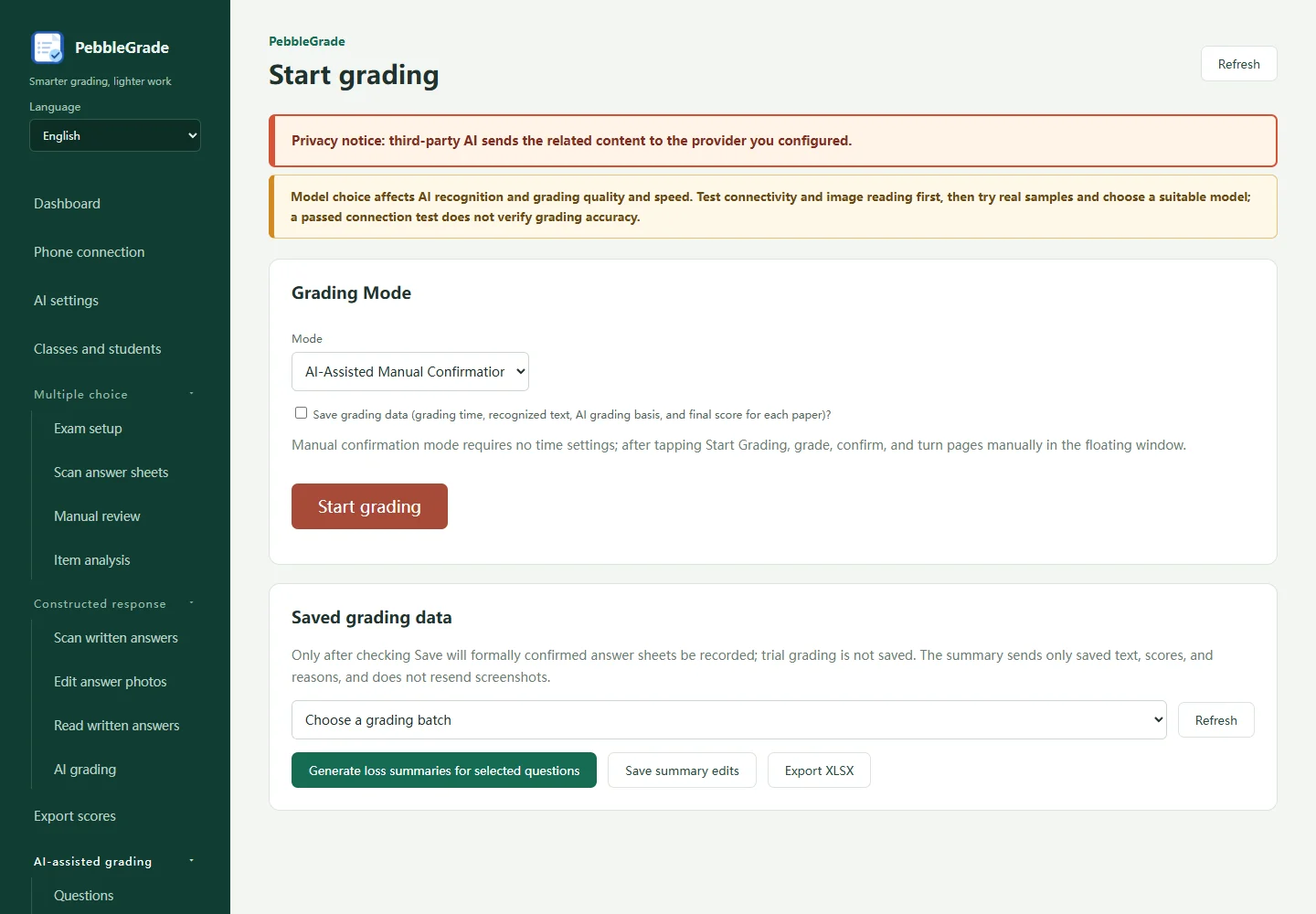
- In Start grading, choose AI assistance with manual confirmation first. Starting opens the floating toolbar; it does not immediately recognise an answer. Use its controls and review the current answer, suggested marks and reasons before confirming.
- Automatic grading can enter and confirm marks on the platform. Validate it on a single answer first and supervise operation. Stop if the page changes or behaves unexpectedly, then check the actual platform marks.
- Enable Save grading data before the run if you need records. Only formally confirmed answers with saving enabled become records; trial grading is not saved. Saved batches support an editable overall summary and XLSX export.
10
Export scores and keep a full backup
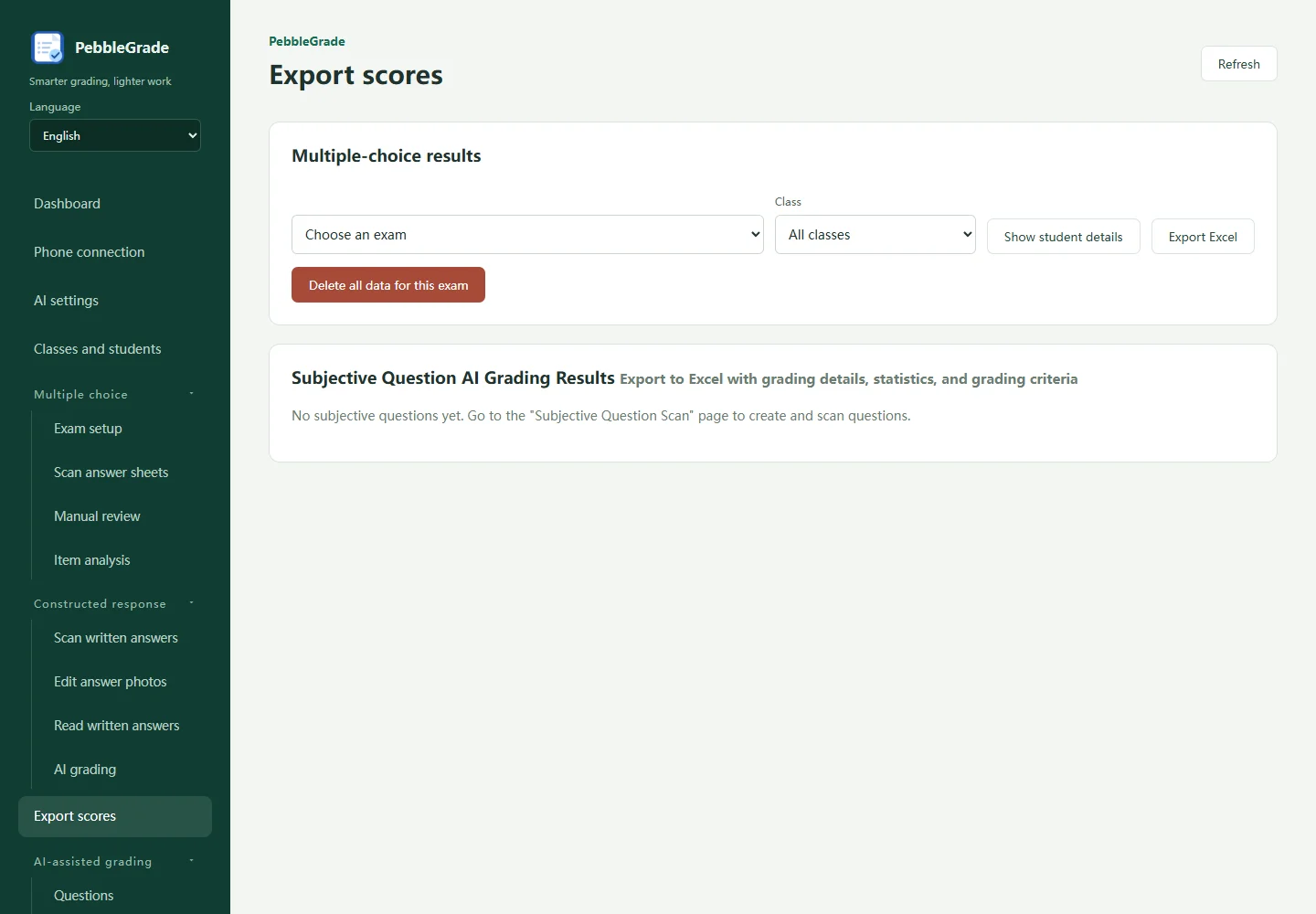
- Open the combined score-export page. Select the exam/class for multiple choice, or question/class for written responses, and export Excel. Saved on-screen grading batches export from Start grading.
- Complete the save dialog, open the file and check identifiers, names, classes, marks and record counts. Cancelling the save does not create an export.
- A score spreadsheet is not a full backup. Phone connection provides Export full backup, including existing photos and crops but excluding AI keys. Deleted or missing images cannot be recovered from a new backup. Keep the original data when migrating.
Common questions
Can I start without configuring AI?
Start with classes, multiple-choice exam setup, generated cards, scanning and manual review. AI recognition, grading and summaries require a suitable AI configuration. Subscription availability is shown in the app and actual Store checkout.
Why are phone photos missing?
Check the current computer connection, selected exam, active capture task and upload result. For written responses, inspect the collection exam and student assignments.
What if AI fails or produces unexpected marks?
Read the error, then check the active configuration, vision capability, complete answer images, recognised text and matching rubric. Preserve current results and diagnose with a small sample before retrying.
What should I send to support?
Send the app version, device systems, steps and error message. Redact student identifiers and never send passwords, API keys or private keys. Contact pebble.apps@outlook.com.